
Welcome to the Statehouse AI era.
The use case. Legislative aides are brilliant, dedicated, intrepid workers who in many cases spend hours on hours answering emails and sorting through a mountain of AI‑generated email slop to find the urgent and important ones. Enter Pete the Pigeon: an AI assistant for the Ohio Statehouse, created, owned and operated just down the road in Granville, Ohio.
Chris Graham is the lone owner, founder and creator of StatehouseAI, a million lines of code, a masterpiece built to overcome the shortcomings of the big AIs when it comes to the statehouse.
Pete the Pigeon perches in Outlook, ready to help legislative aides deliver Brief, Accurate, Speedy, Sourced responses to every email. He takes a constituent email and pre-researches the answers to the questions in it, so the reply that goes out is grounded in the public record. Some offices, especially those whose constituents have low rates of home internet access, appear to receive less email; others, especially chairmen’s offices, often receive hundreds of emails a day.
Of the fifteen or so legislative aides who have seen it, all but one said they believed they could save hours per day. Asked what they would do with that time if Pete turns out to be all he’s cracked up to be, the answer came back practically in unison: deeper policy research for my legislator.
Pete never sends an email. Not one, not ever, not on anyone’s behalf. Pete is a researcher and a drafter. The final press of the send button is, and should remain, our legislative aides’.
The ask. A preliminary test with three offices, including Senator Blessing’s and any others he believes are a great fit for a trial run. We have all heard about the enormous productivity leaps AI will bring to every industry. Pete the Pigeon has been here all along.
Welcome to the Statehouse AI era.
Meet Pete and try him yourself at statehouseai.com.
Turn on Pete for the whole office in five minutes.
For the IT desk. Pete the Pigeon includes a Microsoft 365 add-in from Fugio Consulting in Granville, Ohio. It drafts replies to constituent email from the public record. Nothing installs on a PC; once it is deployed to a mailbox it appears in Outlook on the web, Outlook for Windows and Outlook for Mac.
Step 1. Allow the site and the sender
Both domains are ours. The pigeon one is new and trips new-domain filters, which is why staff see “this site can’t be reached” and quarantined mail.
- Web filter: allow statehouseai.com and petethepigeon.com (and their subdomains).
- Mail gateway: allow senders at @statehouseai.com and @petethepigeon.com.
Step 2. Deploy the add-in once, by pasting one link
Nothing to download and nothing to install on any machine. Five clicks in the Microsoft 365 admin center; every screenshot below is from a live deployment.
- Sign in to the Microsoft 365 admin center, open Settings › Integrated apps › Add-ins,
and click Deploy Add-In.
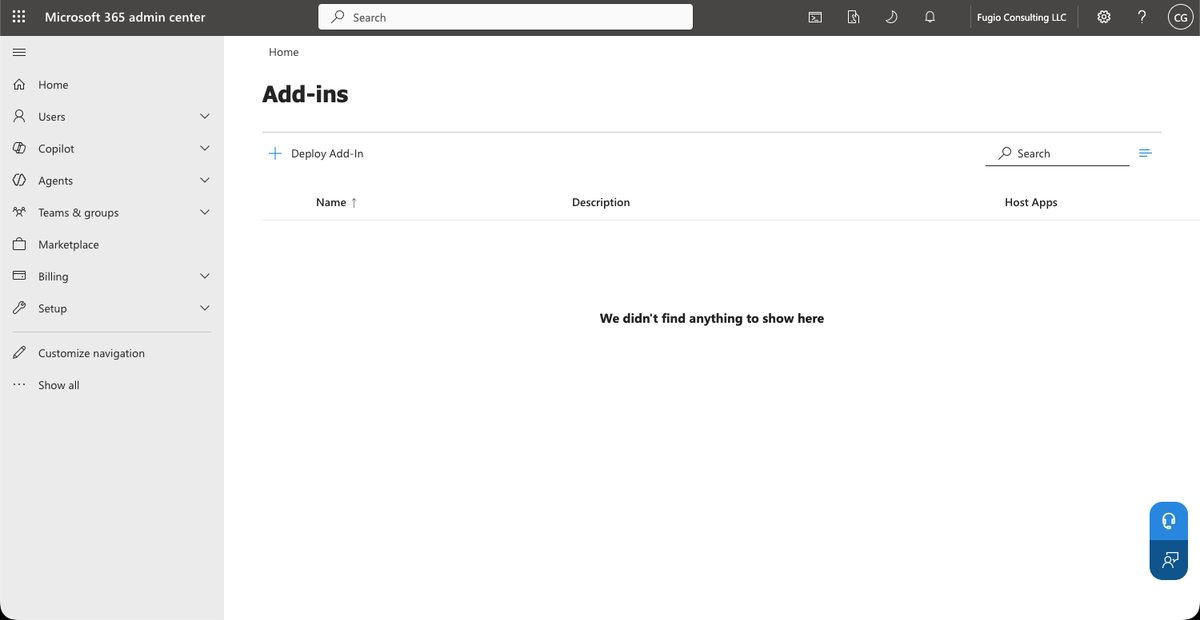
The Add-ins page. Deploy Add-In is the only button. - Click Next, then Upload custom apps.
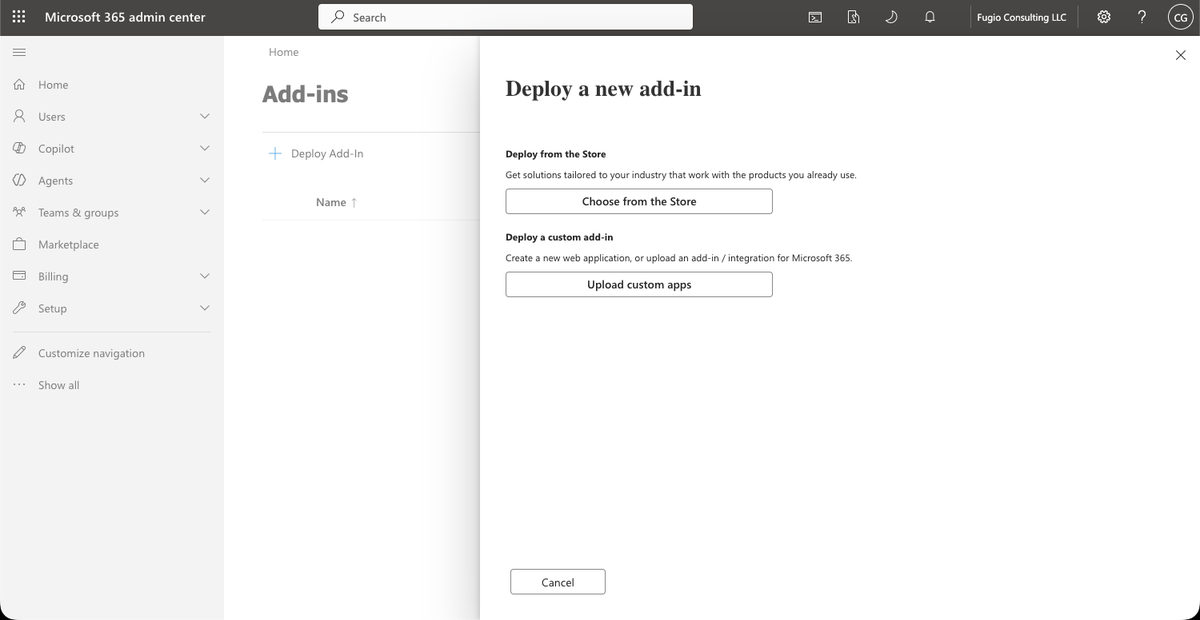
Choose from the Store is for listed apps; Pete comes in through Upload custom apps. - Choose I have a URL for the manifest file, paste this link, and click Upload:
https://statehouseai.com/outlook/manifest.xml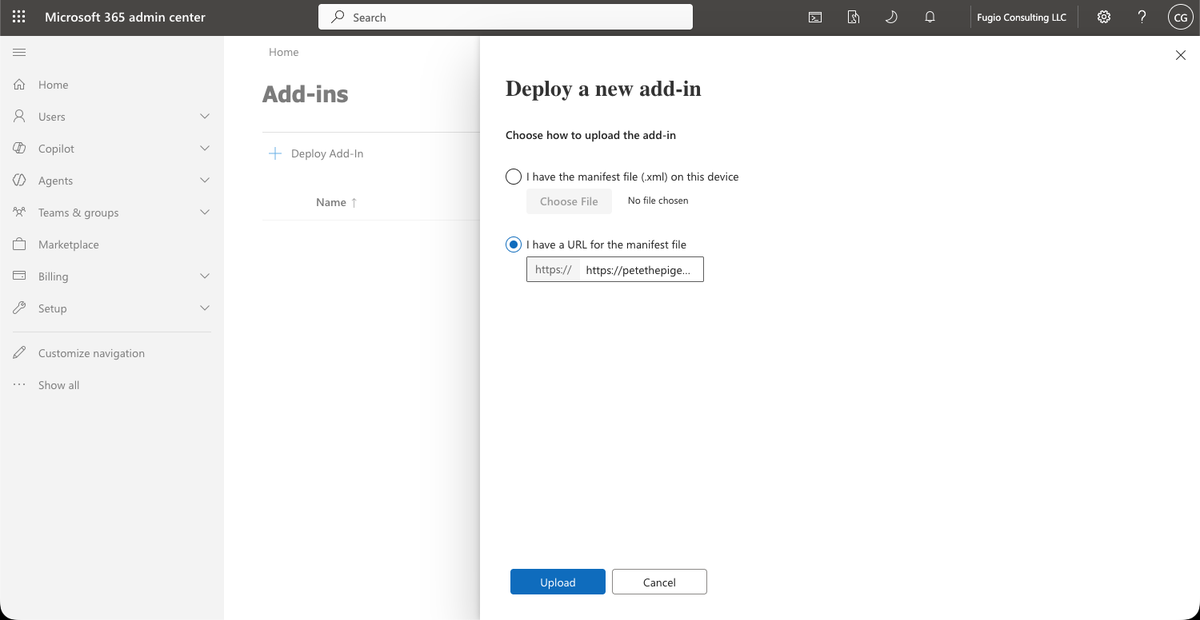
The URL option. No file changes hands; Microsoft reads the manifest straight from our server. - Pete shows up with his name and icon. Choose who gets him (Everyone, or a pilot group of a few
legislative aides), leave Fixed selected, and click Deploy.
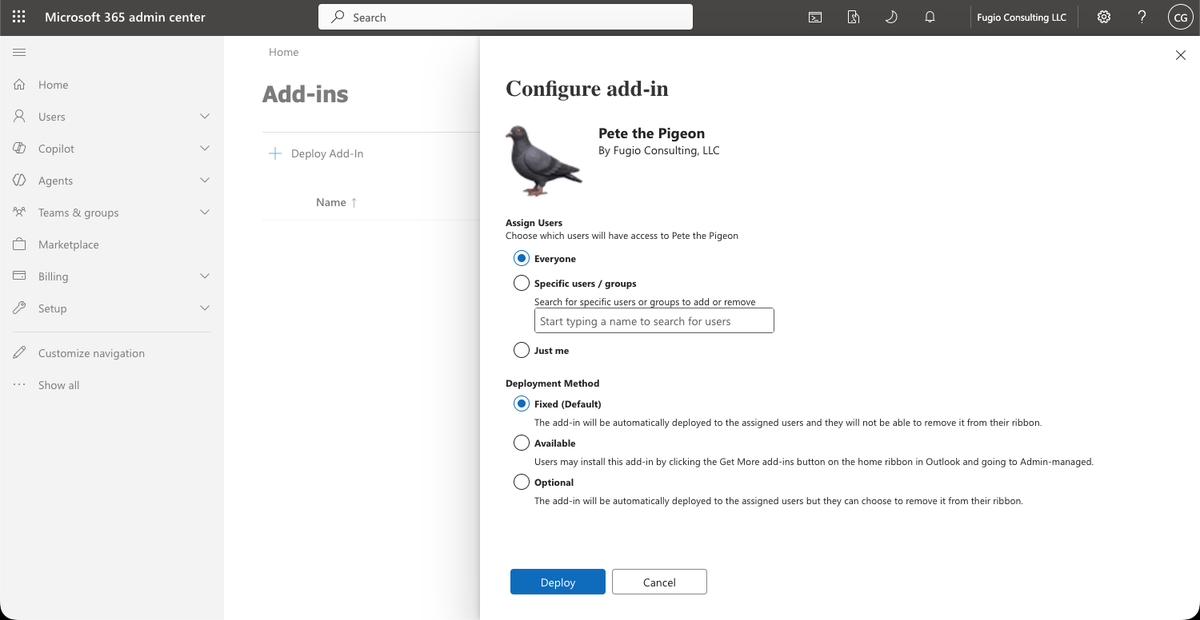
Configure add-in: pick the users, keep Fixed, Deploy. - That’s it. Staff see a Pete the Pigeon button in Outlook, on the web and on the desktop, usually within
the hour and at most within 24 hours, with nothing to install.
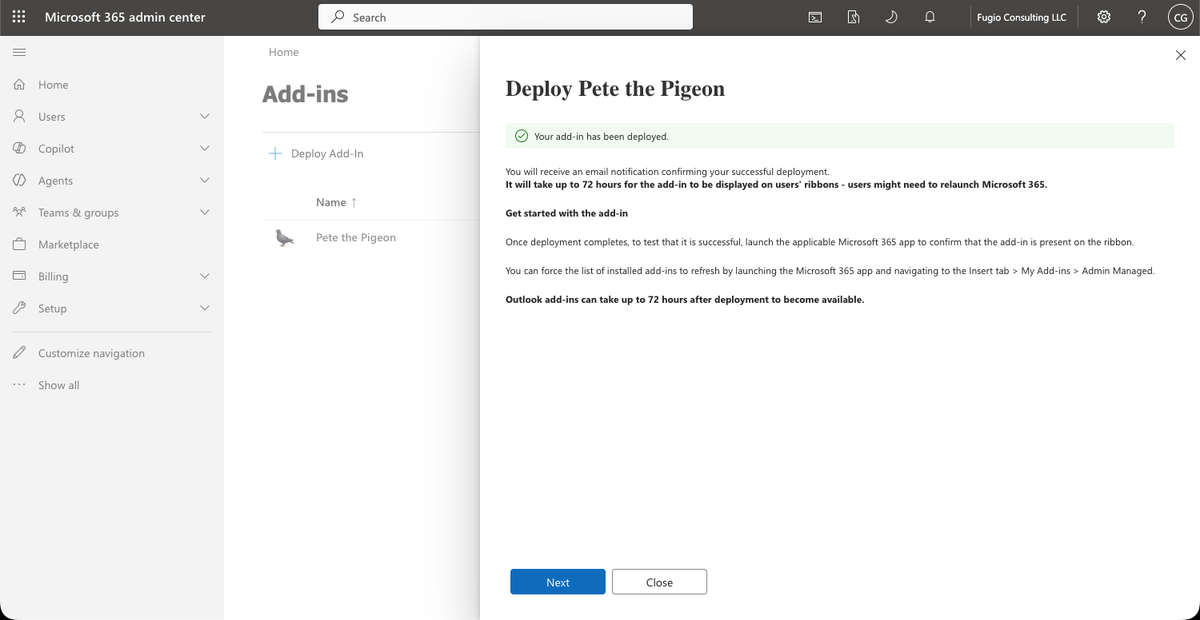
Deployed. Pete now sits in the Add-ins list with an Ok status.
When Pete updates
Pete’s pane updates itself; nothing to redo. The only time an admin touches this again is when the manifest itself changes (a new button, for example). Then: Add-ins, click the Pete the Pigeon row, Update add-in, choose the URL option, paste the same link, Update. The version number in the panel confirms it. Outlook picks the change up within a day; signing out and back in hurries it along.
Step 3. Approve Pete’s mailbox access (one click)
Pete now reads and tags mail through Microsoft Graph instead of the older Exchange interface, so Microsoft asks an admin to approve it once for the tenant. Click, sign in as an admin, and approve — that’s it.
This grants Pete permission to read and tag mail in the signed-in user’s own mailbox, only while the pane is open on a message — it reads and summarizes each email automatically as you open it, and writes nothing except category tags (Sort inbox) and drafts you ask for.
What it does and does not do
- Reads the message the user has open, automatically, whenever the pane is open on it.
- Reads the subject and opening lines of the unread inbox only when the user clicks Sort inbox by urgency, then tags those emails Urgent or Important as ordinary Outlook categories. A Draft button on each row saves a reply to Drafts. The mailbox permission in the manifest exists for this tagging.
- Writes a draft reply into their mailbox. It never sends anything. The aide reads it, edits it, and presses send, or doesn’t.
- Inside a reply window, the same button writes the draft into the open message.
- Hosted on Railway, SOC 2 Type II. Details: privacy, terms, support.
Pete is an Office add-in — a sandboxed task pane — not a browser extension; IT can deploy it through Microsoft 365 centralized deployment with admin consent.
Data handling
| What | Detail |
|---|---|
| The open email | Goes from the pane to Pete’s server, then to the model that writes the summary or draft. Not stored. |
| Chat and Ask Pete questions | Kept 30 days, then deleted automatically. |
| Which AI writes the answer | Pete Pro accounts run on Anthropic (Claude) only — not retained by default, deleted within 30 days in every case, never used to train models. Free accounts run on Google (Gemini API) — not used to train models, logged 55 days for abuse monitoring. |
| Zero-retention offices | Available on request: question text, answers and email are never written to our log; counts only. |
| Account data (templates, notes, training set, settings) | Kept until you delete it. |
| Deletion requests | Completed within 30 days. |
| Trackers | None on this page or in the pane. |
| Permissions | The manifest declares ReadWriteMailbox; the pane’s actual Microsoft Graph consent is Mail.ReadWrite, because Pete writes drafts and category tags. Every Graph call runs from your browser to your own mailbox — the token never reaches Pete’s server. |
Full detail: Privacy Policy · live retention numbers, not just a claim: Trust.
Staff: forward this page to IT
Copy and paste if you like:
Could you allow statehouseai.com and petethepigeon.com in the web filter and mail gateway, and deploy the Pete the Pigeon Outlook add-in for our office? The one-page instructions are at statehouseai.com/outlook/it. Thank you!
StatehouseAI & Pete the Pigeon are built, owned and operated by Fugio Consulting in Granville, Ohio.
Chris Graham — CEO